Tiny11
Download Tiny11 ISO or use Tiny11 Builder to create a lightweight Windows 11. No TPM needed, fast, secure, and perfect for older PCs.

What is Tiny11?
Tiny11 is a lighter version of Windows 11 that meets almost all the requirements but in simpler ways. NTDEV developed this tool when, on October 25, Microsoft decided to stop the support of Windows 10. So people have to update their Windows to 11, but due to many requirements of the new system, it is not that easy. Here comes this Tiny11 ISO file. You only need 8GB of RAM as compared to normal Windows 11, which needs 20GB. Moreover, there is no need for TPM 2 or Secure Boot. It is lighter as it removes all the unwanted apps as well. You may face only one problem while using this tool, which is that small updates like bugs or security fixes work fine, but when you do bigger updates, they may break things.
Tiny11 Builder: You can also build your own lightweight Tiny11 by downloading Windows 11 files from the official Microsoft site and Tiny11 Builder from GitHub. There, you will get an open-source PowerShell script made by NTDEV. It is easy to use as you can do customization in it, like deciding what apps you want to remove and what to keep. It works on any type of Windows 11 or language and uses the Deployment Image Servicing and Management system to compress files. Moreover, you don’t need to sign in to your Microsoft account to use it.
Things to Know About Tiny11
Latest Version
Windows 11 25H2 Tiny11 ISO
Benefits
System Requirements
Limitations
Features of Tiny11
Download Tiny11 ISO [Latest Version]
Tiny11 | 25H2 | 5.1 GB
How to Download and Install Tiny11?
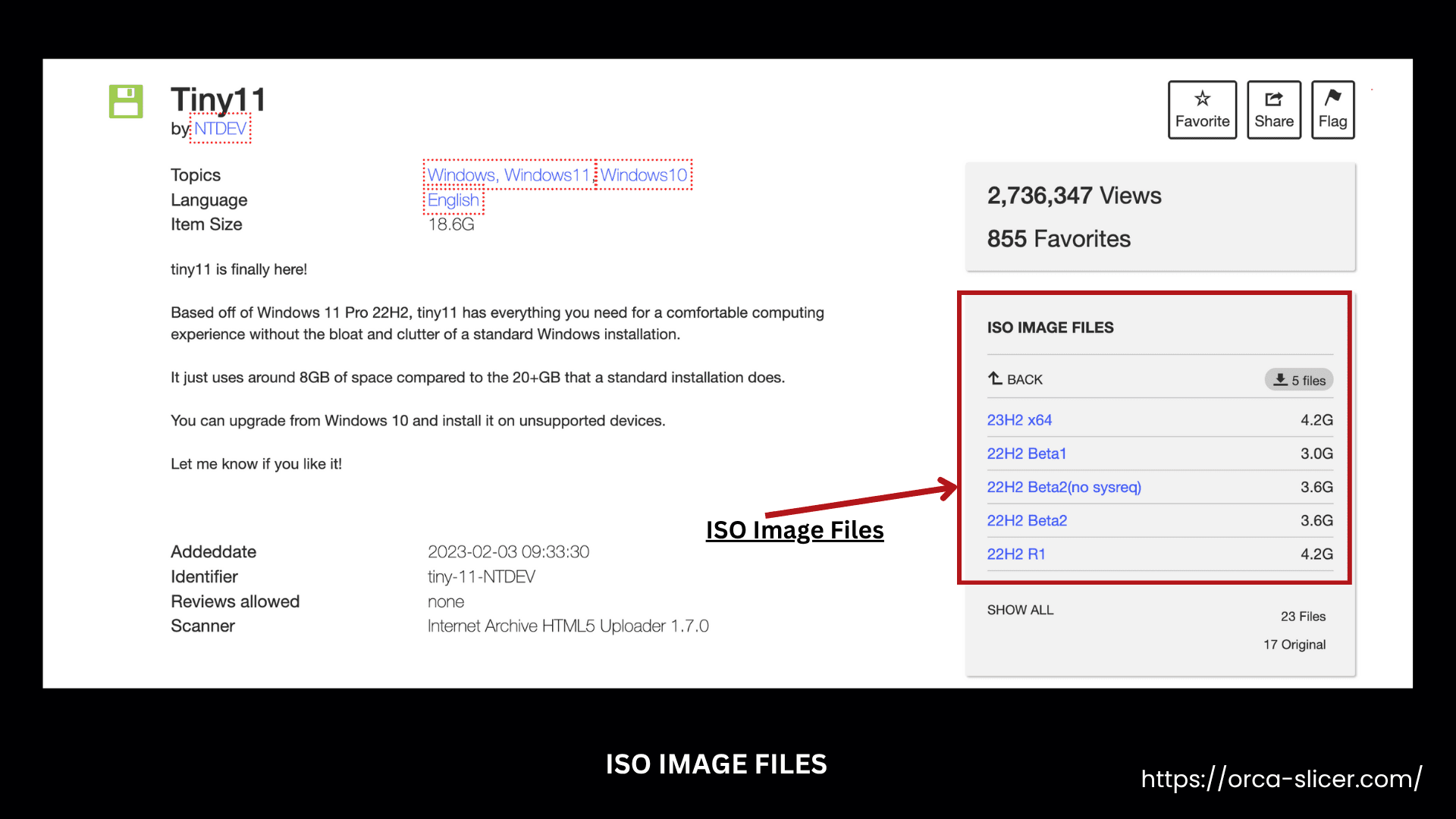
Install Tiny11
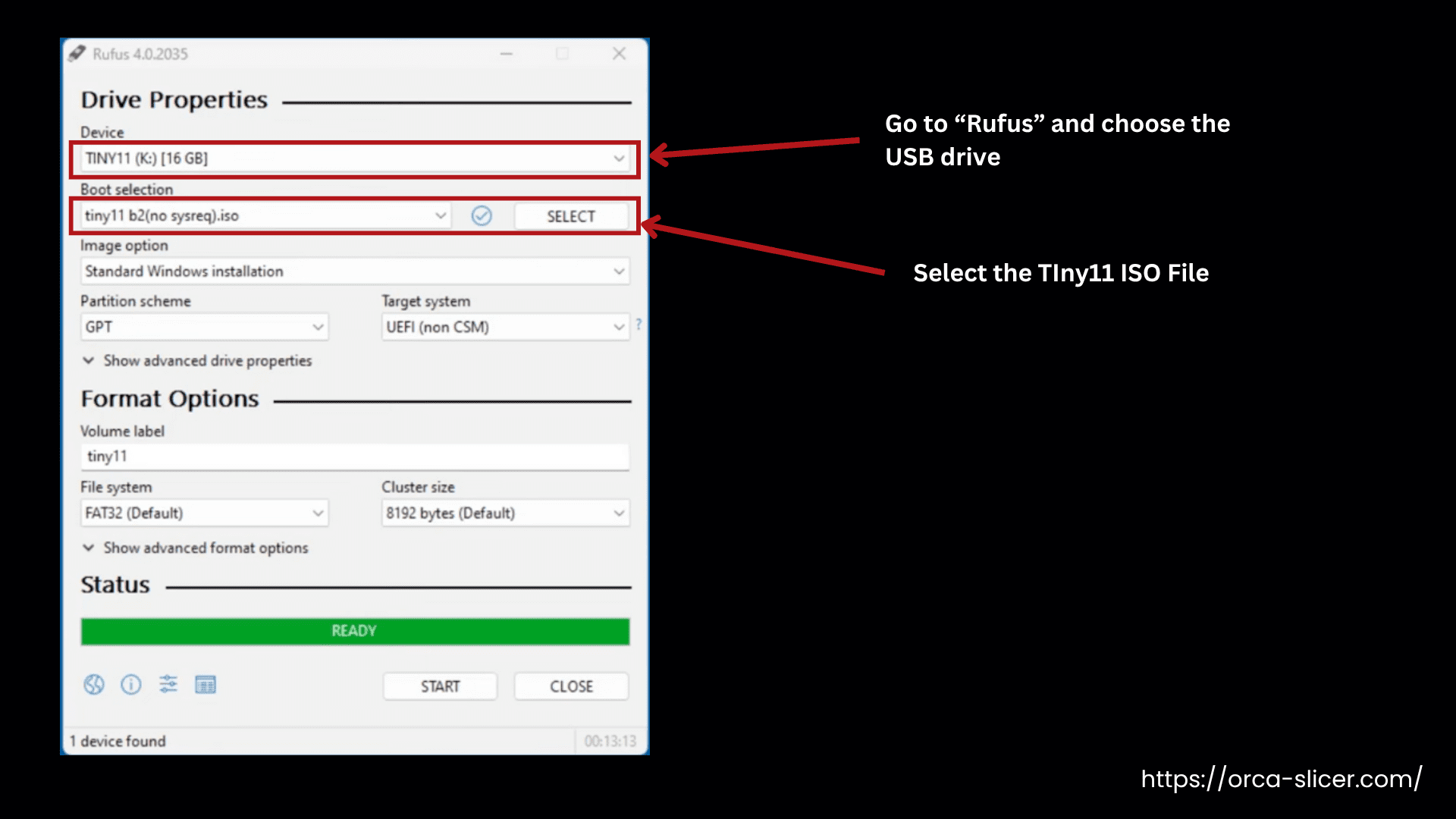
Step 1: First of all, you need a Bootable USB so that your computer can start the setup from there.
You can use a free tool called “Rufus” to create this USB. Open Rufus and choose the USB drive and then the Tiny11 ISO file.
You won’t need a USB if you are using a Virtual machine. Just directly mount the ISO file in the machine.
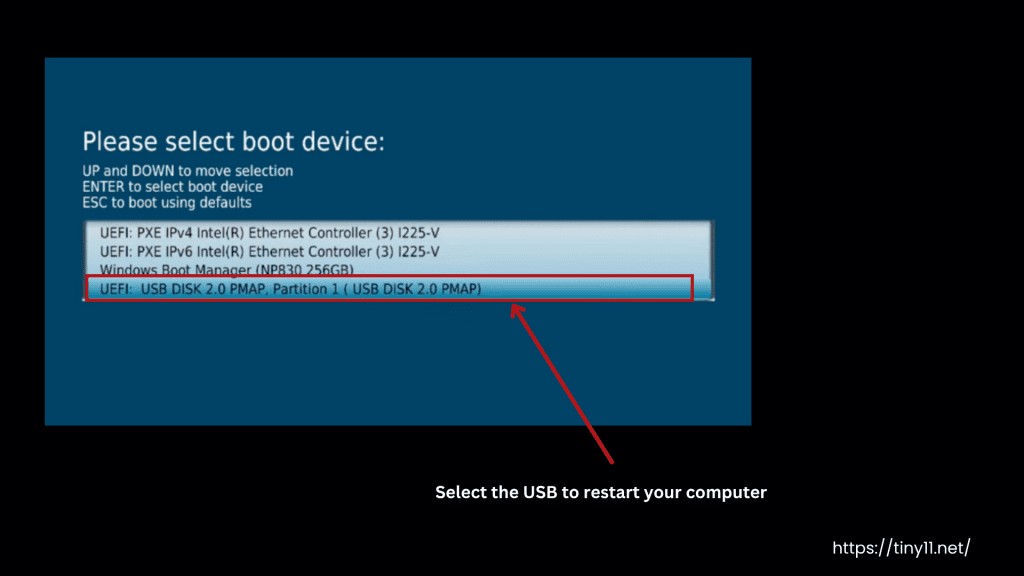
Step 2: Now you need to start your computer from the USB. So restart your computer and press the BIOS key. Then go to the Boot Options section and move the USB drive to the top of the list. Save the settings.
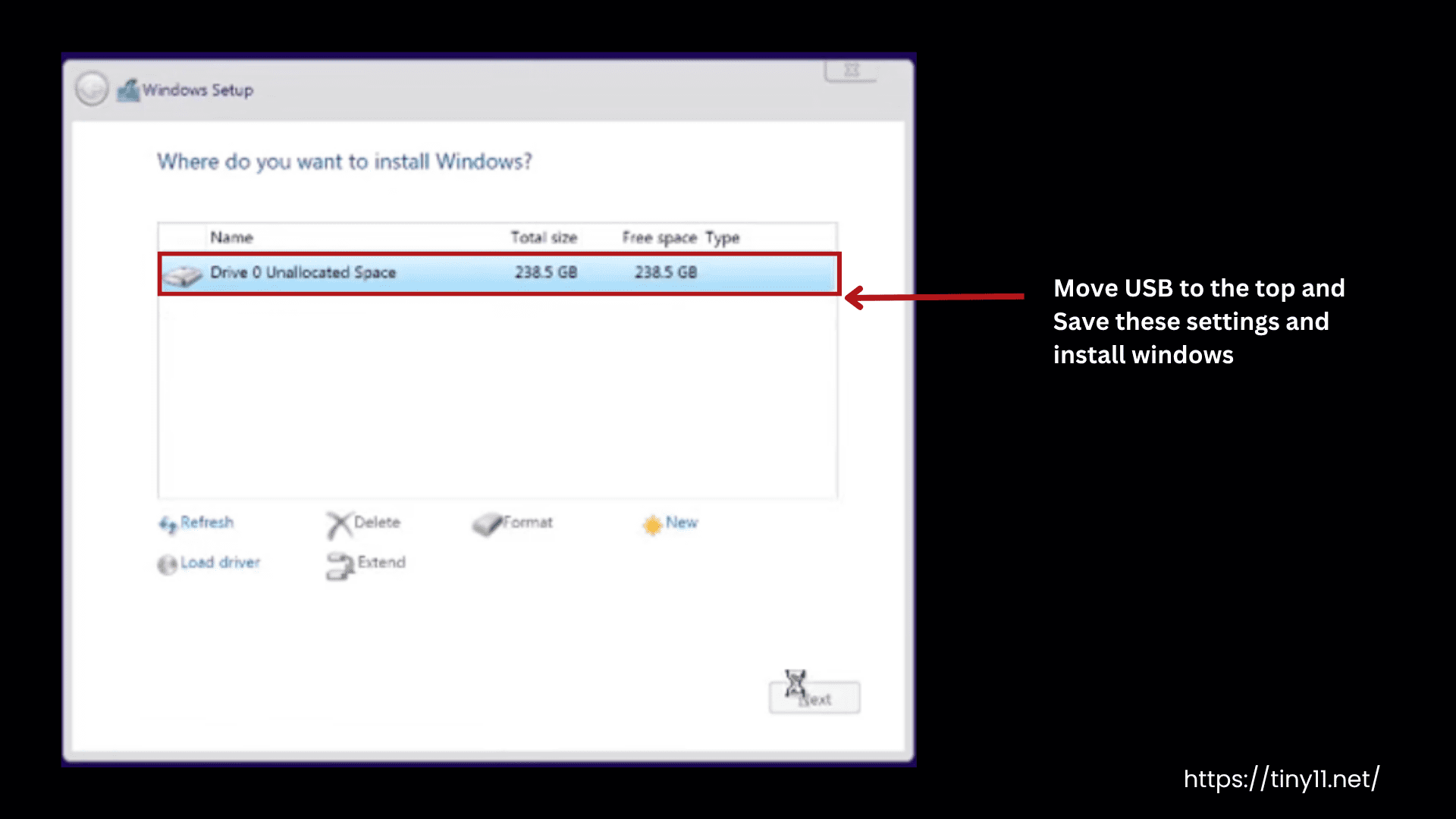
Step 3: Tiny11 setup will appear on the screen. Select the options related to your language, time zone, keyboard layout, etc. Accept the license terms and choose the drive location where you want to install it.
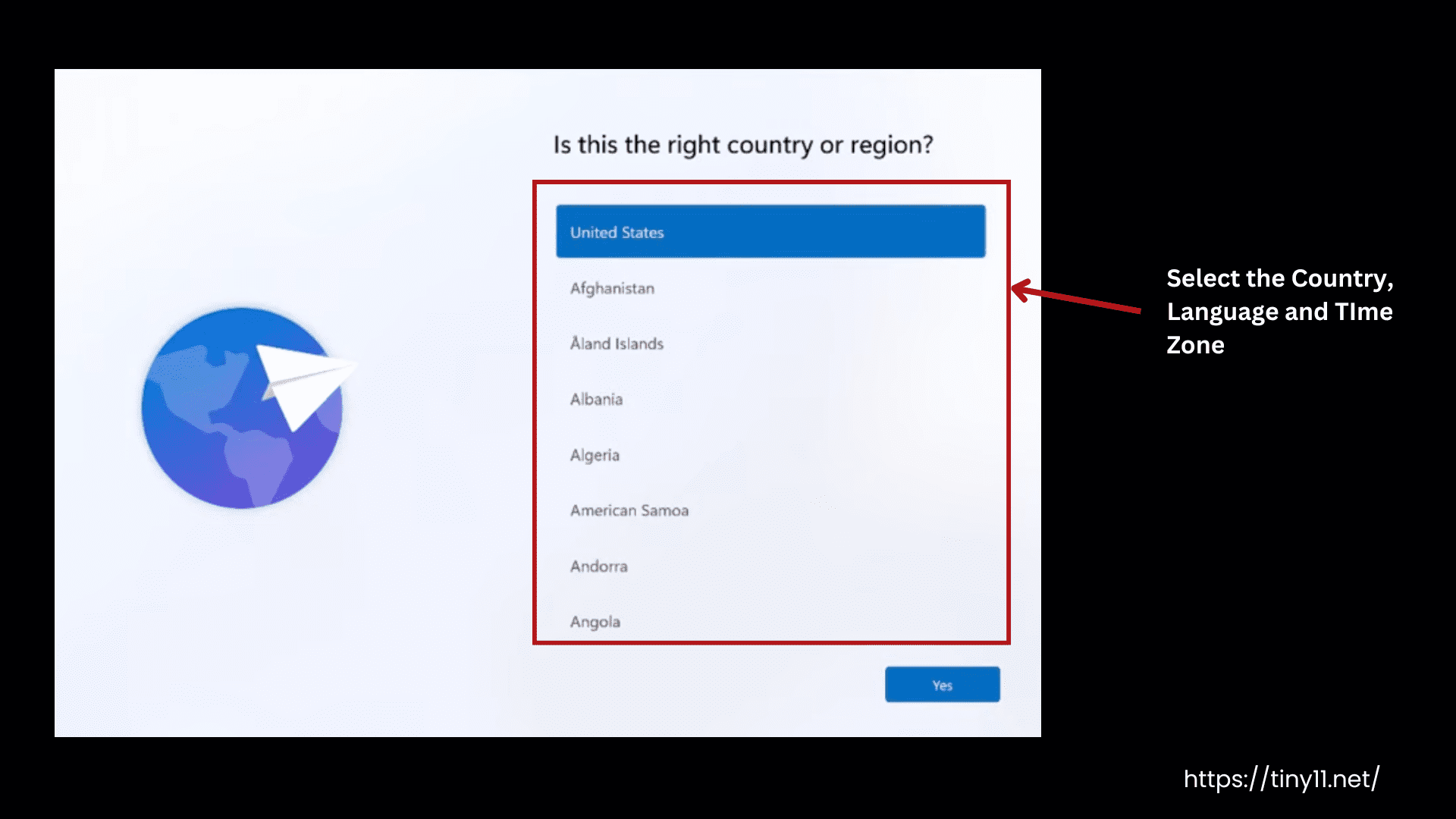
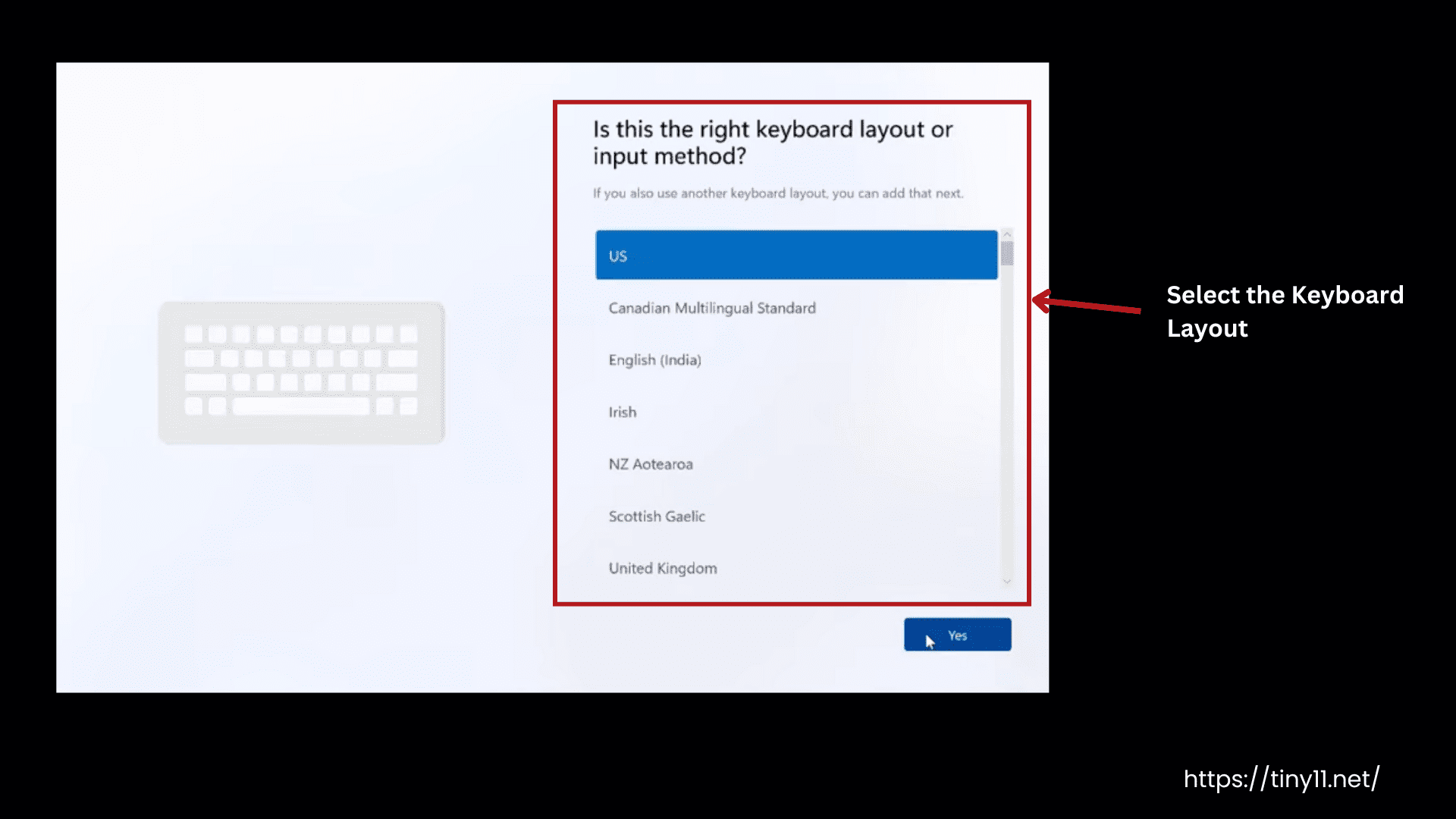
Step 4: Create a local account for you and add your name and password. You can use your Microsoft Account as well.
Step 5: Complete the setup. Your PC may restart many times during this installation.
Voila! You have successfully installed Tiny11 on your PC.
Download Tiny11 Builder [Source Code]
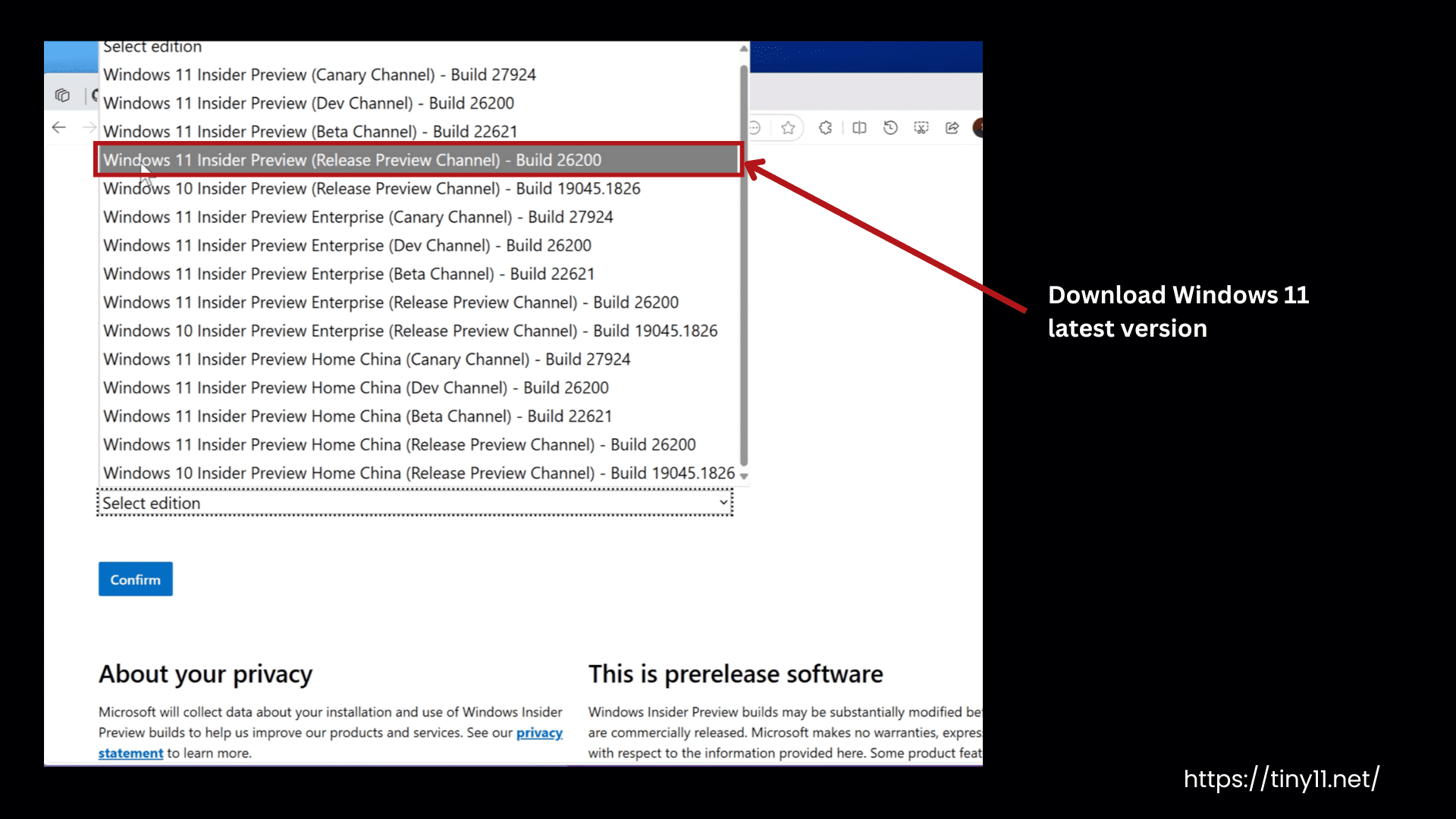
Before downloading the Tiny11 Builder, first download the Windows 11 ISO:
- Download Windows 11 latest version (25H2) from Microsoft’s website.
- Right-click on the file and select Mount to open it.
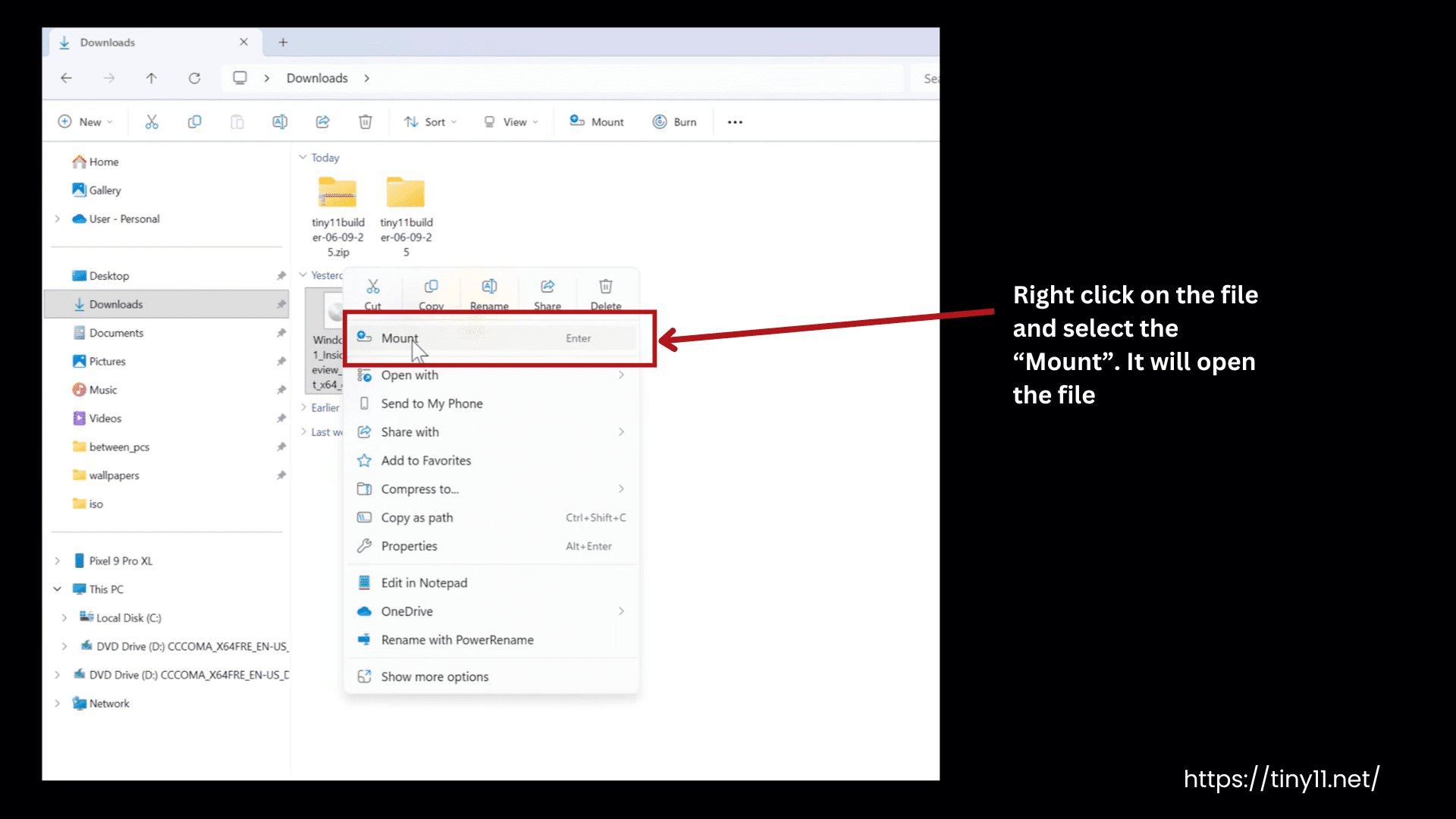
- When you mount or open the file, it acts like a virtual DVD drive.
- It automatically assigns it a drive letter like E: , F:, or G:.
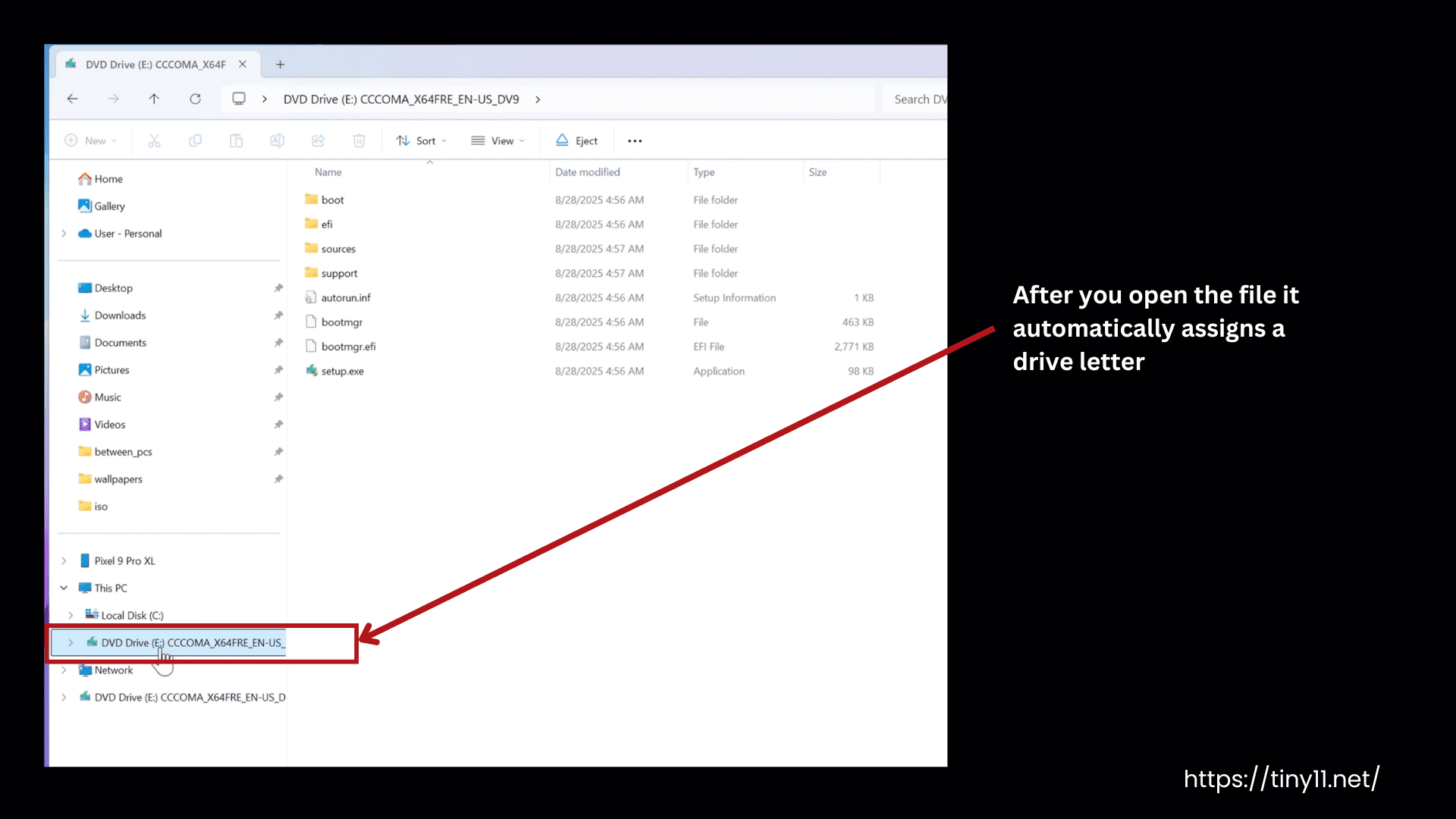
- Remember your drive letter.
Get Tiny11 Builder
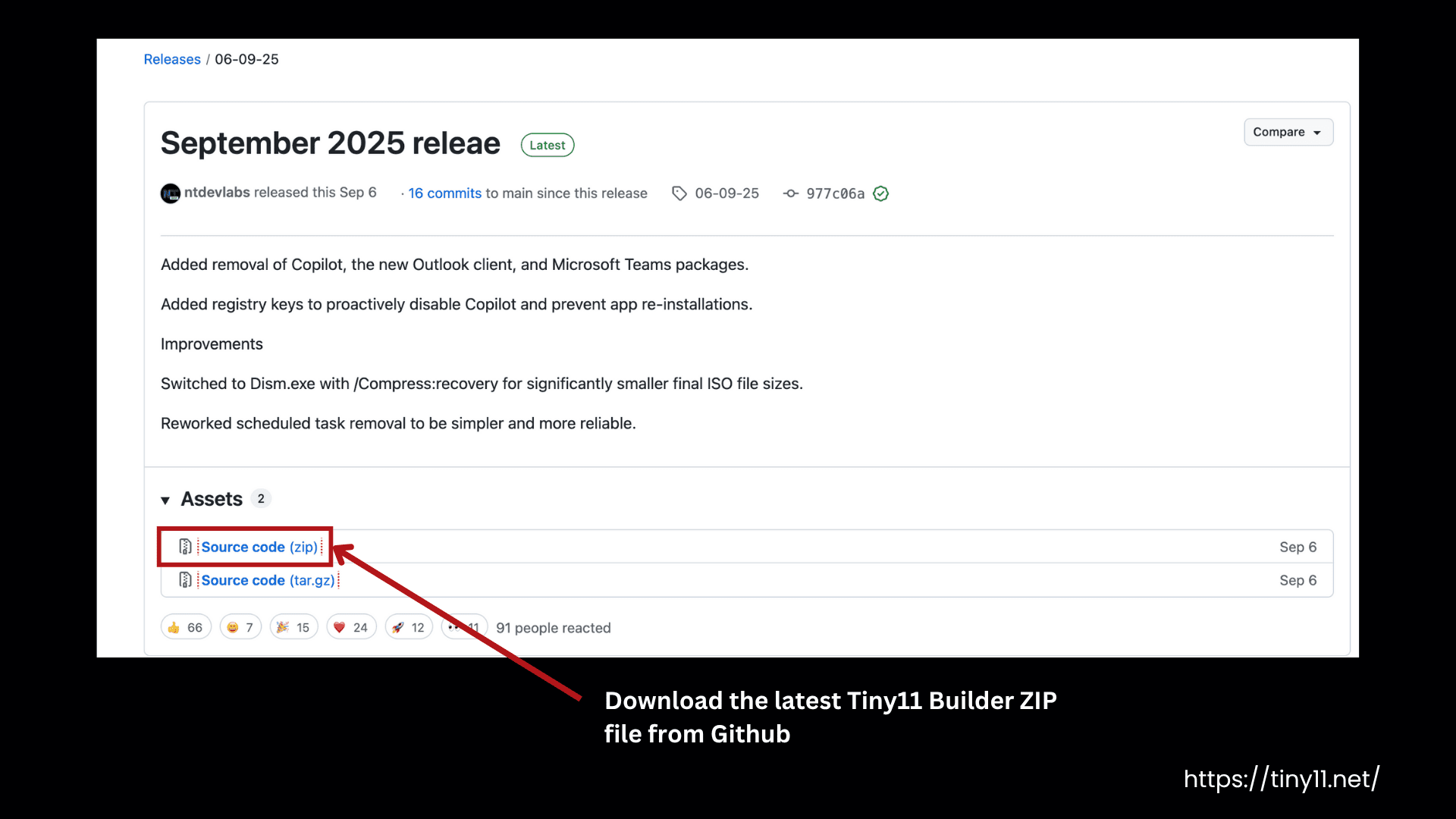
Click the download button given above on our website to download the latest ZIP file of the Tiny11 Builder directly.
Or
Go to the official Tiny11 Builder GitHub page and download the latest Tiny11 Builder ZIP.
How to Use Tiny11 Builder?
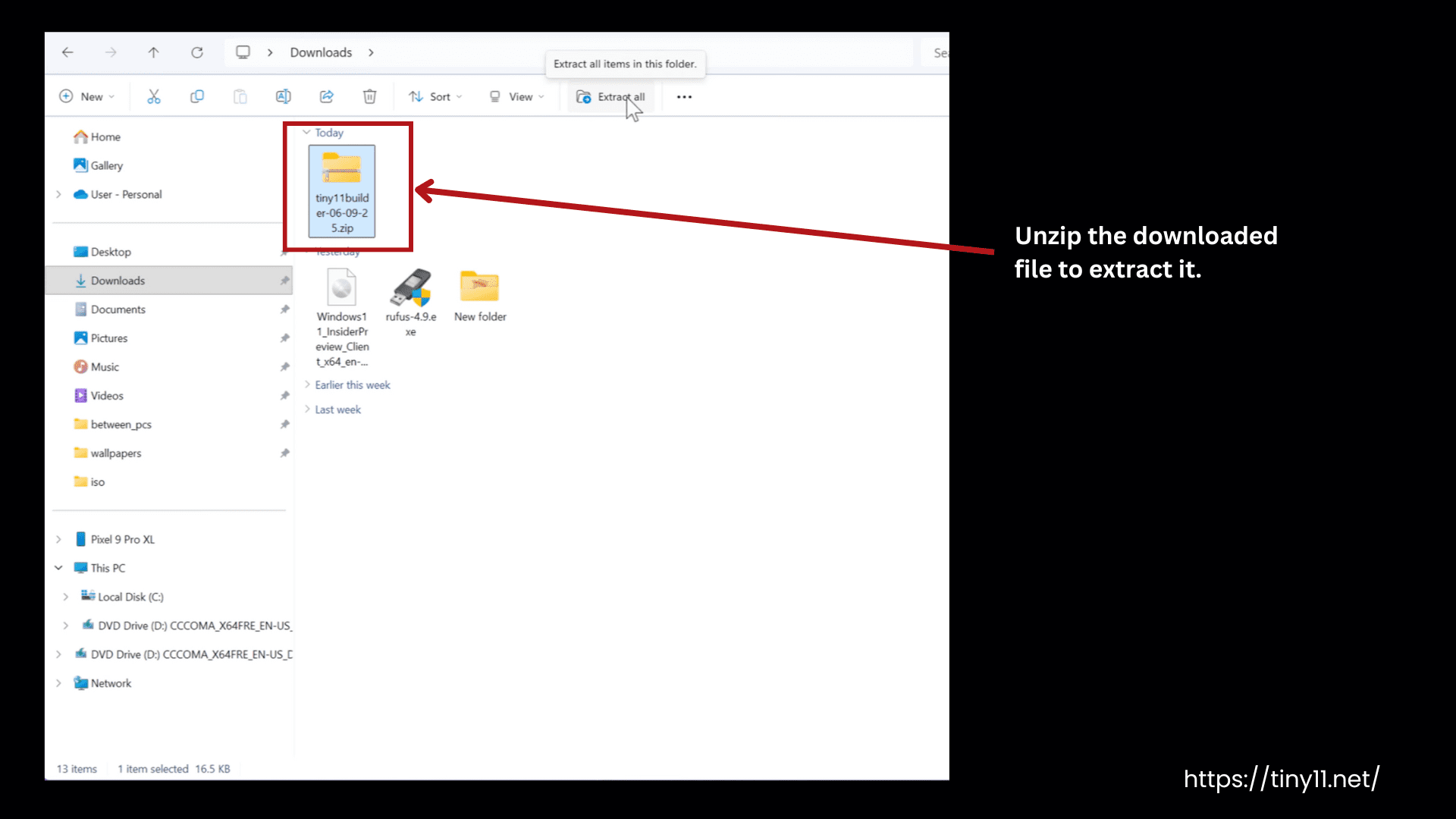
Step 1: Find the ZIP file
Go to your downloads folder. You will see files like tiny11builder.zip or tiny11builder-main.zip
Step 2: Unzip the file
Unzip the file by extracting all.
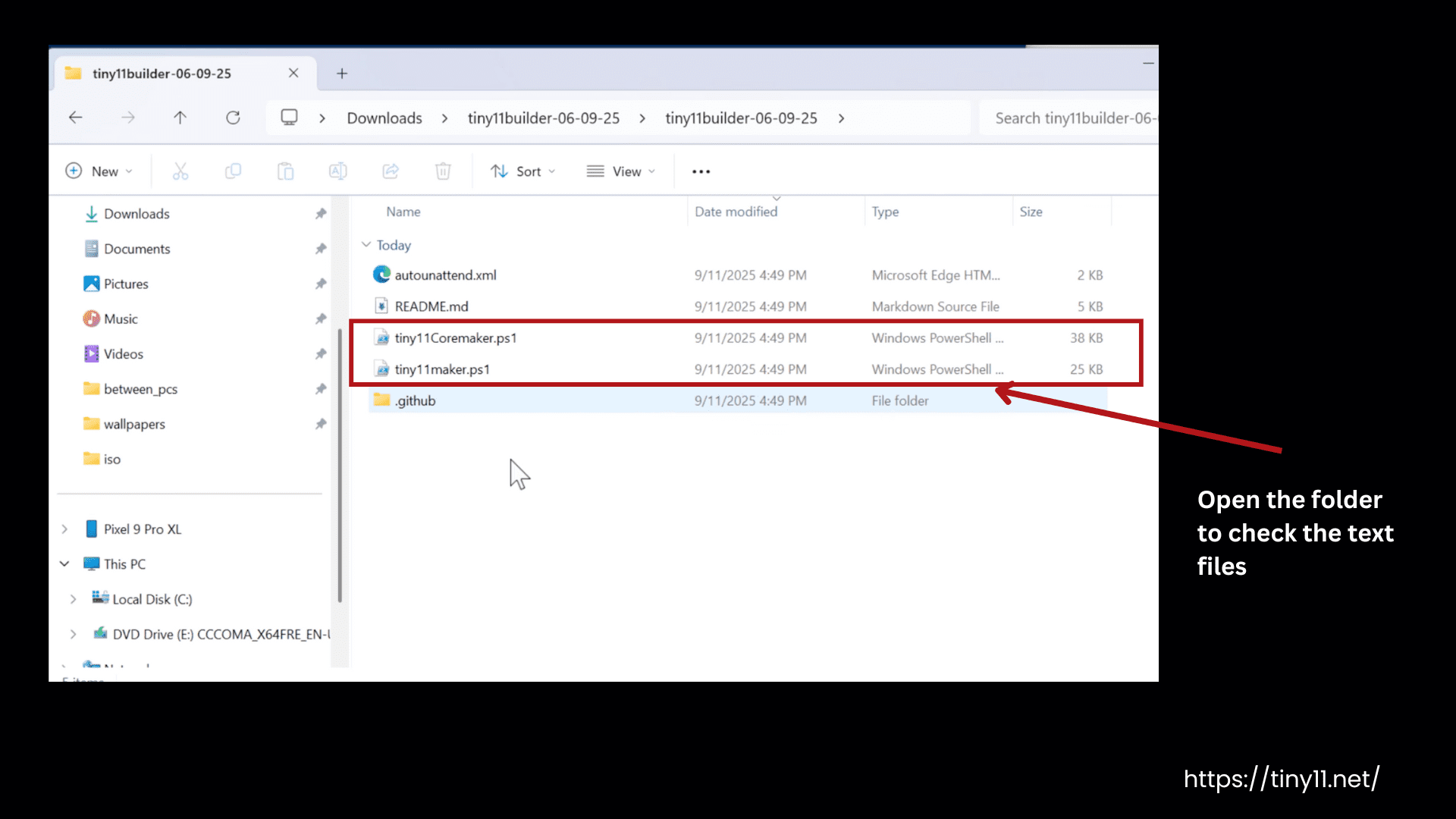
Step 3: Open the Folder
Go inside the extracted folder, and you will see files like these with some text files:
tiny11maker.ps1tiny11coremaker.ps1
Step 4: Fetch the official Windows 11 setup file
- Now download the most recent version from Microsoft’s official website.
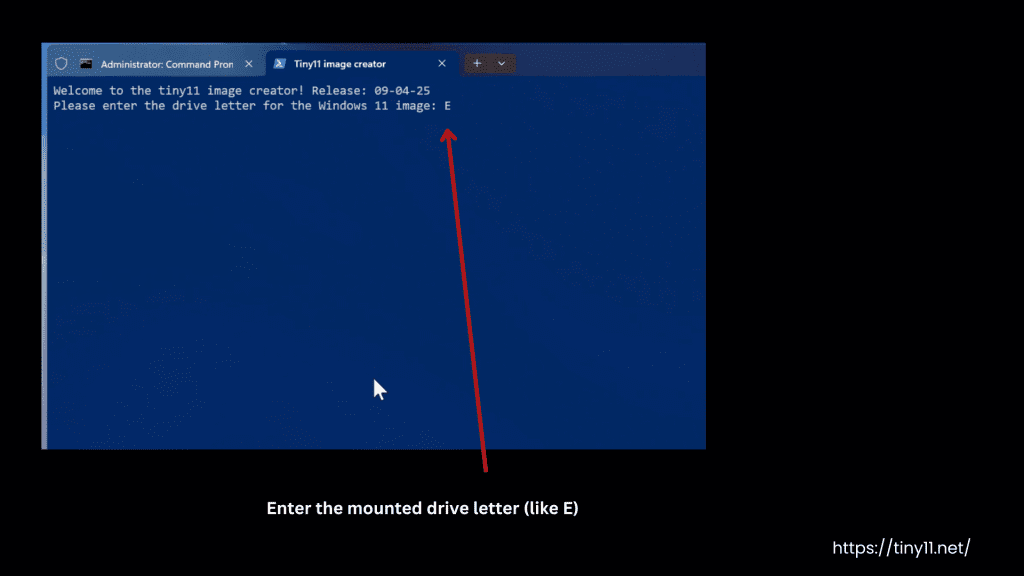
- Click right on the downloaded file and click Mount. It will show the drive letter. Note it down.
Step 5: Open PowerShell as Admin
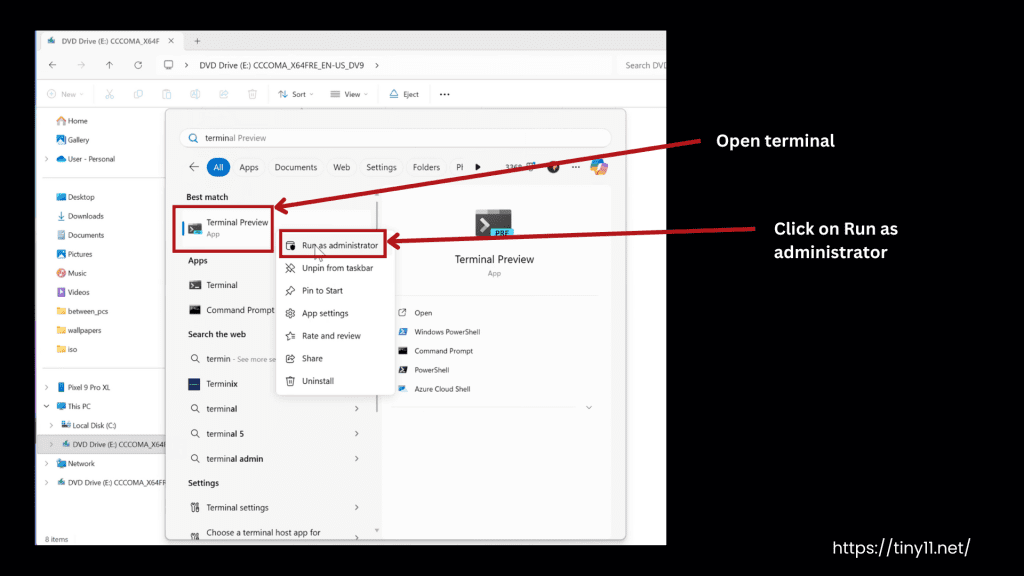
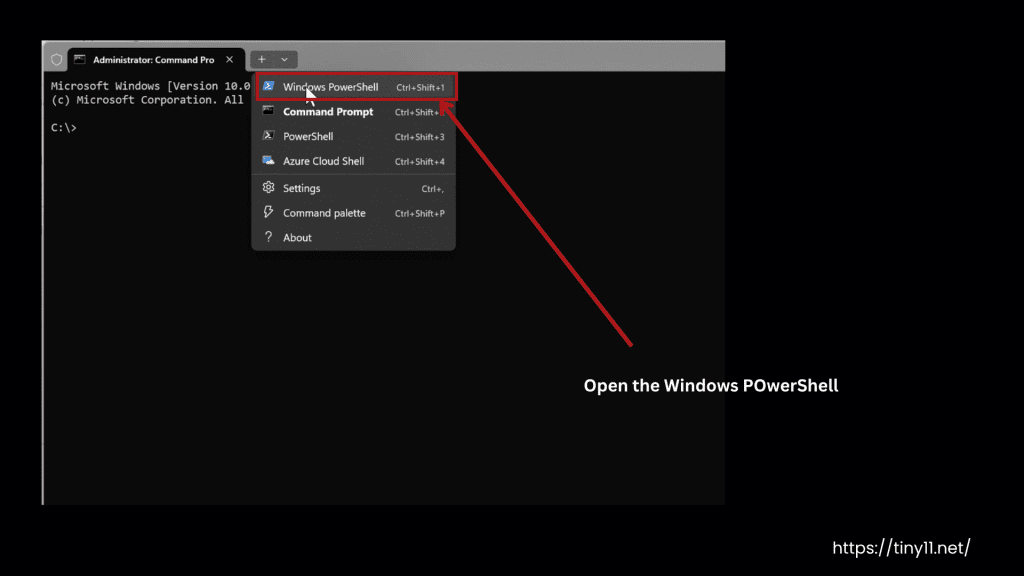
First, search for Windows Terminal (Preview) and run it as an administrator by right-clicking on it.
After that, open Windows PowerShell inside the terminal, as shown in the screenshot below.
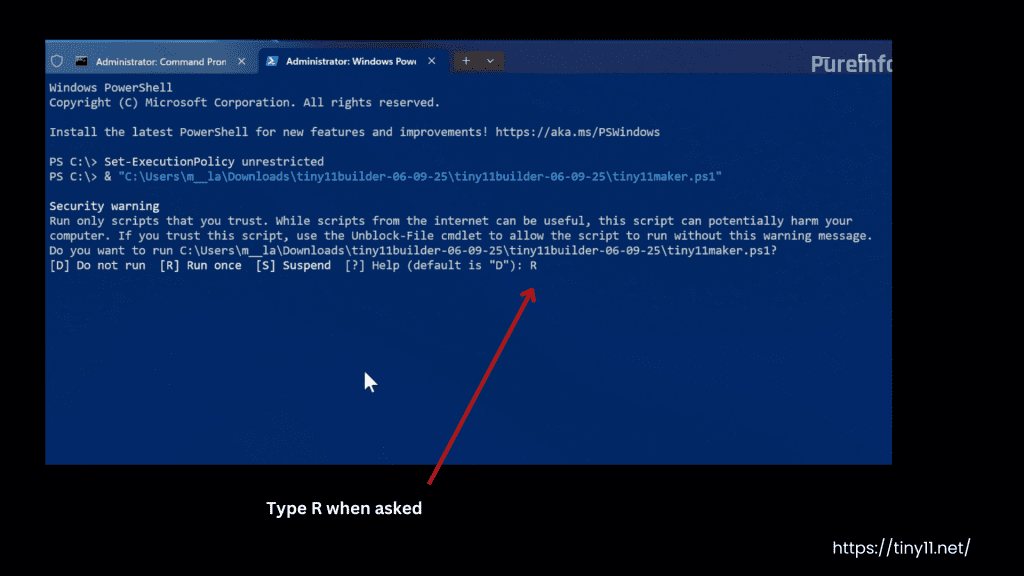
Step 6: Allow PowerShell to Run the Script
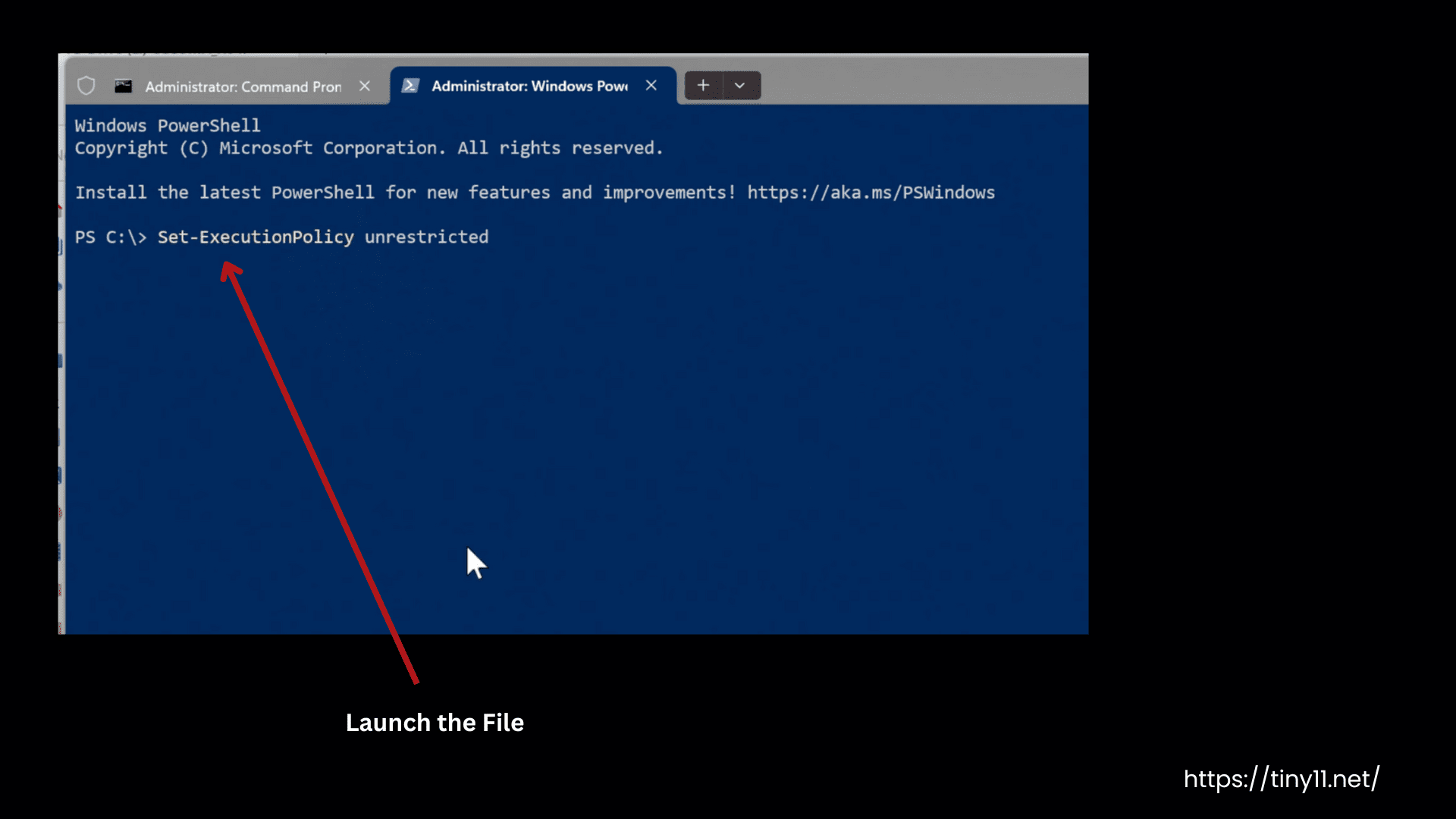
Type: Set-ExecutionPolicy Bypass -Scope Process
Or
Set-ExecutionPolicy unrestricted
Windows, by default, blocks the powerscripts. But when we type the command, it allows the scripts to run without changing the other settings.
Step 7: Go to the Tiny11 Script Folder
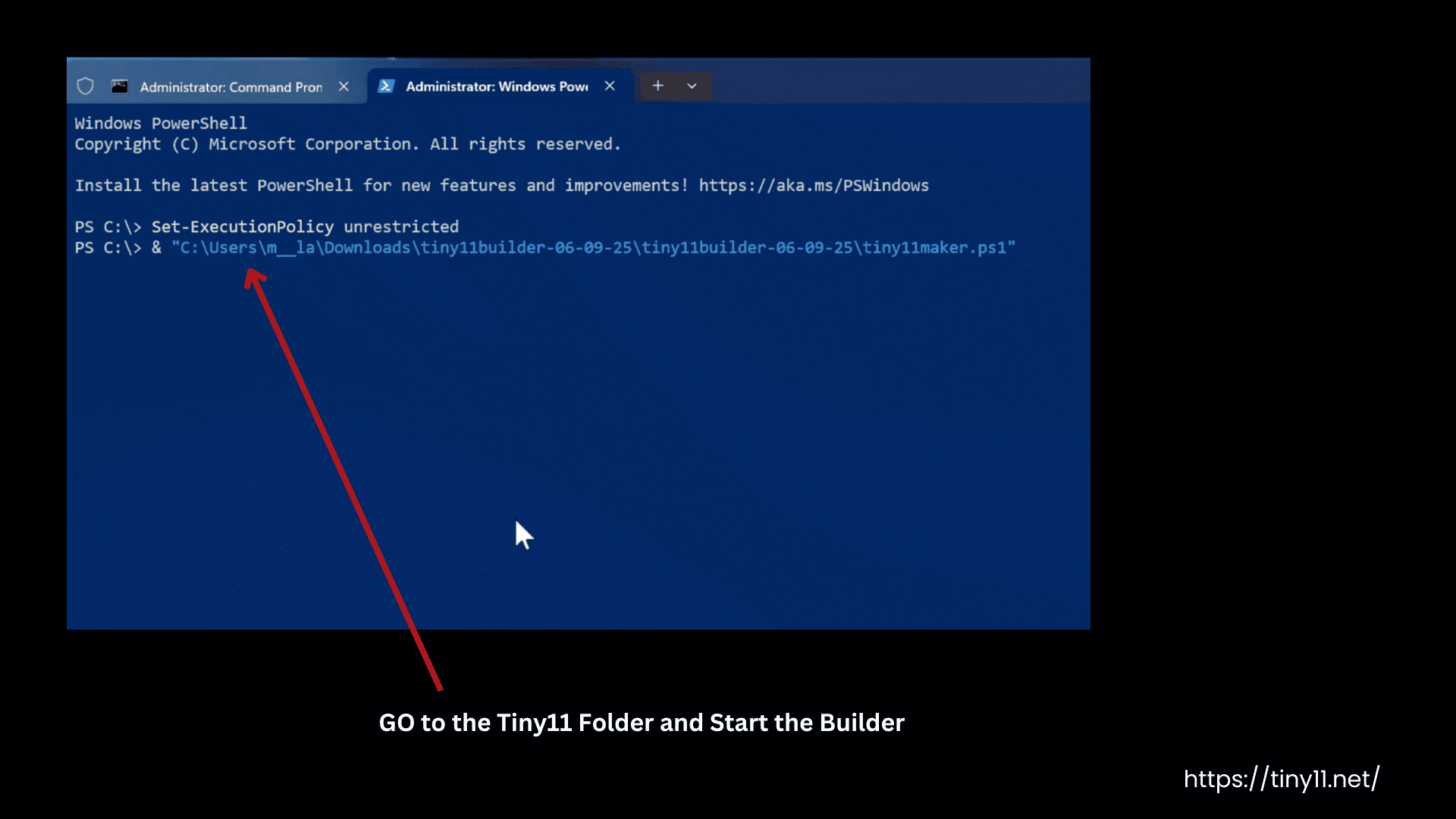
Type this command: & "C:\PATH\TO\SCRIPT\tiny11maker.ps1 and change the path according to your folder name or file location.
Step 8: Launch the Tiny11 Builder
Type .\tiny11maker.ps1 for the normal version or .\tiny11coremaker.ps1 for the extra-small version and press Enter
Step 9: Follow the Prompts
- Type r when asked
- Enter the mounted drive letter (like E)
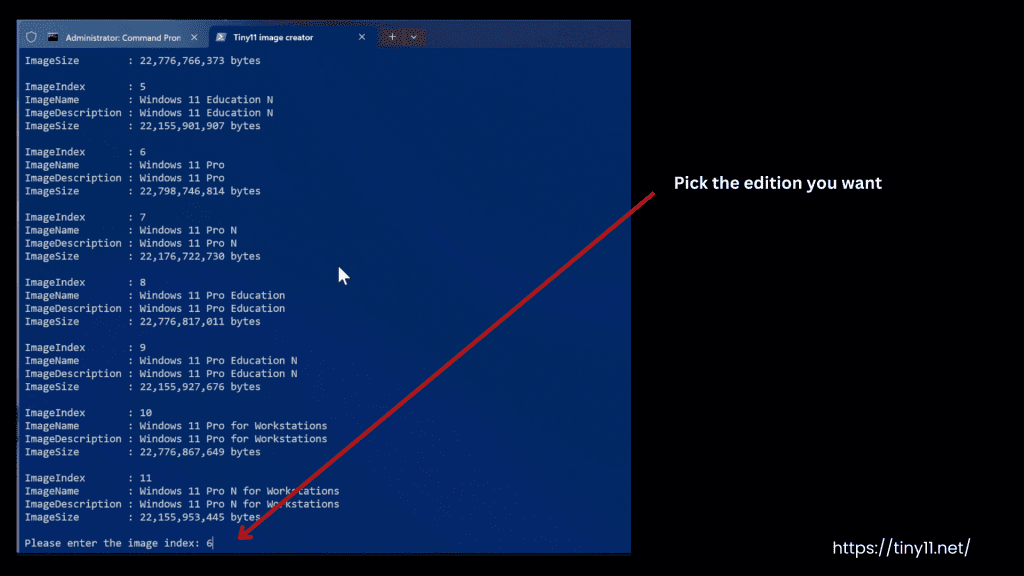
- Pick edition: 1 for Windows 11 Home edition and or 6 for Pro edition
Step 10: Complete Setup
Now wait for 15 to 45 minutes to complete this setup.
Video Overview
Features in Detail
Ultra-Lightweight Installation
The smart system called DISM makes it possible for Tiny11 to take very little space on your computer, which may be around 8 GB, as compared to the regular Windows 11 that takes more than 20 GB. DISM removes the heavy files and keeps only the important parts. So the older computers with limited storage may also benefit from it.
Safe Updates (But Limited)
Your system remains safe and clean, and protected from security risks, as Tiny11 installs small Windows updates but skips the bigger ones. Large feature updates may add back bloatware that makes the system heavier again. So, it only installs security updates or bug fixes, etc.
Customizable with Tiny11 Builder
When you use Tiny11 Builder, you can customize it and create your own version of Tiny11. You can select the apps and features according to your choice and remove them as well. It is flexible for all types of devices. NTDEV regularly publishes updates. Moreover, the online community also contributes to its improvement as it is an open-source tool.
Works Without New Hardware
Now, people with older computers can also run this file, which cannot even install normal Windows 11, as you don’t need TPM 2.0, Secure Boot, or a high RAM size. So if you have an older PC, you can use it and enjoy all the basic features of Windows 11.
No Unwanted Apps
Tiny11 removes pre-installed apps like Microsoft Teams, Edge, OneDrive, Copilot, etc. These apps usually slow down the system, so by removing them, you get faster results. Moreover, your system uses less CPU power when idle.
Local Account Option
You don’t need to log in to a Microsoft account, as you can use a local account by keeping your PC fully offline. Your information remains private as you don’t sync to the cloud or share. This is a great option for home servers, offices, or personal users.
Why Chose Tiny11?
If you want to give new life to your old PCs, Tiny11 is for you. It makes them faster and work smoothly. PCs with just 4 GB of RAM work 25 to 35% faster. It is lighter because it avoids the heavy AI features of normal Windows 11. A large online community trusts it and uses it, as it is free, easy to customize, and much faster. Many people also use it for gaming or dual-boot setups, etc.
Tiny11 Builder has got 16.3K+ stars on GitHub, making it a more popular choice among Windows lovers.
There are many Tiny11 alternatives in the market, like Nano11, or Ghost Spectre Windows 11, but we can say Tiny11 is the best as it is built directly with the Windows 11 files and not from any unreliable source.
FAQs
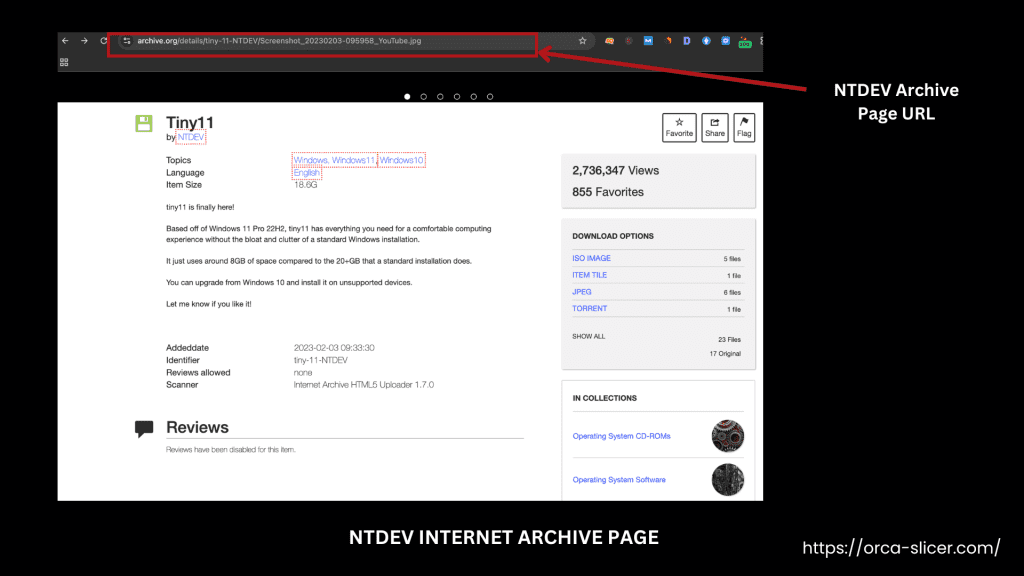
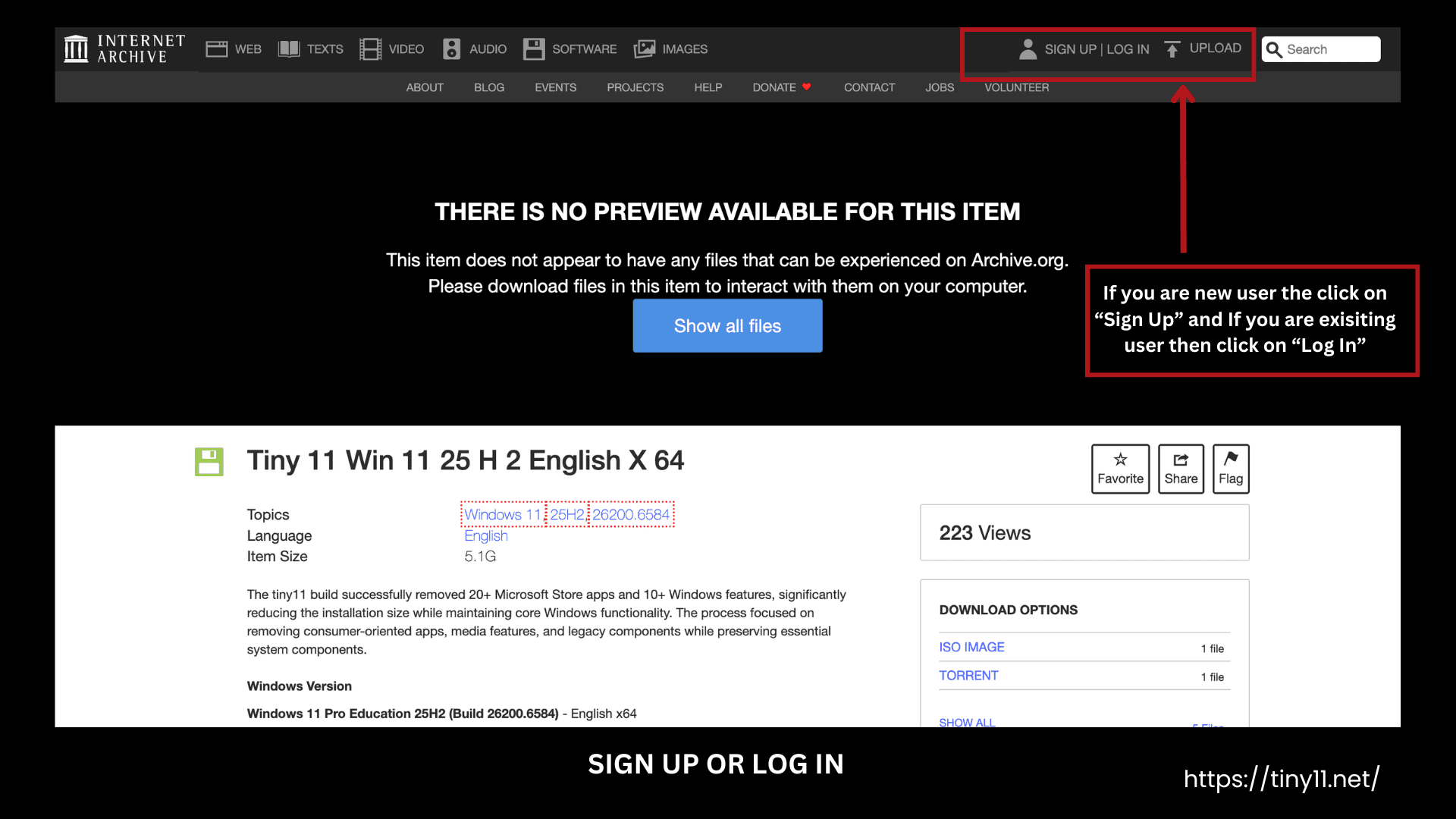
Yes, Tiny11 is safe to download, but only if you download it from our website or reliable sources like the official NTDEV GitHub or Internet Archive page. You should avoid random websites because they may offer fake or unsafe versions.
To download the latest version of Tiny11, just click the download button given above on our website, or download it from NTDEV’s official Internet Archive page, or build your customized Tiny11 ISO using the Tiny11 Builder script from GitHub.
No, Microsoft does not officially support or improve Tiny11. It is a tool developed by NTDEV for testing and personal use.
No, it’s not illegal.
Yes, Tiny11 is absolutely free. You can easily download the official Tiny11 ISO file from our website.
Tiny11 removes the unwanted apps, so it is lighter than Windows 11 and runs faster as well. Moreover, you don’t need a Microsoft login, and it even works fine on older PCs as it uses less storage. The only thing it may lack is that it does not get full support or updates.
Conclusion
Tiny11 is a lighter version of Windows 11, specially designed for older computers, so that they can be utilized to their fullest. All the unnecessary apps and features are removed, which makes even the older systems with low storage run smoothly. Though Microsoft does not officially support it, you can download Tiny11 from the Internet Archive page of NTDEV or get the Tiny11 Builder (scripts to build a trimmed-down Windows 11 image) from GitHub, which is completely reliable and safe. People who have older computers with limited storage can enjoy all the basic features of Windows 11 with this amazing version.
Get the lightweight Windows 11 experience you deserve — faster, smoother, and bloat-free. Perfect for old PCs and modern systems alike.