Tiny11 is a lighter version of Windows 11 that removes selected apps and system components. It can take up less storage and may leave more memory available for the programs you use. That sounds useful if your laptop has limited RAM or an older processor, but a smaller Windows installation isn't automatically faster or safer.
The choice comes down to more than speed. You also need to consider the apps you rely on, how Windows updates will work, and the risks of installing a modified operating system. Here is how Tiny11 compares with standard Windows 11, what the available tests show, and when making the switch is actually worth it.
Table of Contents
- What Is Tiny11 and How Does It Work?
- Tiny11 Standard vs Tiny11 Core vs Custom Builds
- Tiny11 vs Windows 11: Comparison Table
- Windows 11 vs Tiny11: System Requirements
- How Tiny11 Bypasses Hardware Requirements
- Tiny11 vs Windows 11: Performance Test Results
- RAM and Storage Comparison
- Is Tiny11 Better for Gaming?
- Tiny11 Features: What Is Removed and What Stays?
- Which Windows Apps Are Missing?
- Which Features Does Tiny11 Keep?
- Windows 11 Features That Need Specific Hardware
- Tiny11 vs Windows 11: Security and Updates
- Are Custom Tiny11 ISO Files Safe?
- Which Is Better: Tiny11 or Windows 11?
- Final Verdict
What Is Tiny11 and How Does It Work?
Tiny11 is a project built from Tiny11 Builder, developed by NTDEV that starts with Windows 11 and removes selected built-in applications and components. You still get the familiar desktop, Start menu, File Explorer, and Windows settings, but the installation contains less software by default. Tiny11 Builder is a tool that lets users create an installation image from official Windows media instead of relying on a prebuilt ISO from an unknown website.
The goal is a smaller, cleaner installation, not a new operating system with a different set of drivers or a stronger processor. Tiny11 may reduce background activity and disk use, but it cannot add missing RAM, improve your graphics card, or repair a slow hard drive. It also does not turn an unsupported computer into one that Microsoft officially supports.
Tiny11 Standard vs Tiny11 Core vs Custom Builds
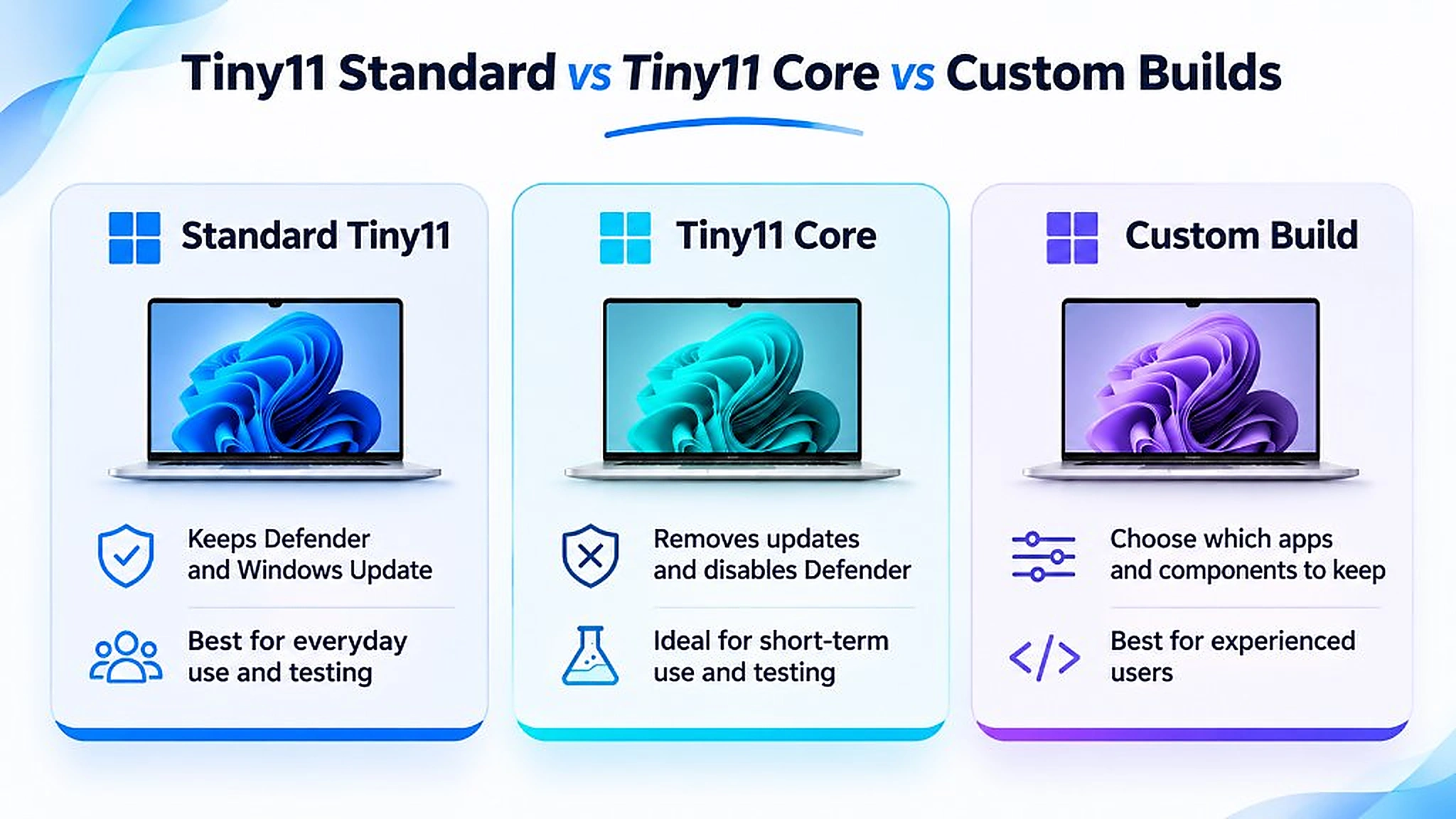
The build you choose matters. NTDEV’s current Builder offers a standard Tiny11 preset, a more aggressive Tiny11 Core preset, and a Custom mode. These are not interchangeable, especially if you want to use the computer every day.
| Build option | What stays or changes | Who should consider it |
|---|---|---|
| Standard Tiny11 | Trims apps while keeping Defender, Windows Update and recovery | People testing a lighter everyday Windows installation |
| Tiny11 Core | Removes update and recovery support and disables Defender | Short-lived virtual machines and controlled testing |
| Custom | Lets you choose apps and components to keep or remove | Experienced users who understand component dependencies |
For normal use, the standard preset is the sensible starting point. Tiny11 Core can produce a smaller system, but its missing maintenance and security features are a serious trade-off on a PC used for personal files, work or online accounts.
Tiny11 vs Windows 11: Comparison Table
Both versions share the Windows foundation, but their installation sizes, hardware requirements, and included features differ.
| Feature | Tiny11 | Windows 11 |
|---|---|---|
| Developer | NTDEV and independent builders | Microsoft |
| Current version | Tiny11 Builder WinUI 0.2.0 | 26H2 |
| ISO size | Around 5.1–5.6 GB in cited builds | Around 8.4–8.8 GB in tested sources |
| Installed size | Around 8–12 GB, estimated | Around 20–30 GB, estimated |
| RAM | 4 GB is a practical starting point | 4 GB minimum |
| Storage | Varies by build | 64 GB minimum drive capacity |
| TPM 2.0 | Installation check can be bypassed | Required |
| Secure Boot | Installation check can be bypassed | UEFI with Secure Boot capability |
| Preinstalled apps | Many removed | Standard Microsoft apps included |
| Windows Defender | Available in standard builds | Included |
| Windows licence | Still required | Required |
Windows 11 vs Tiny11: System Requirements
Microsoft has specific hardware requirements for Windows 11. Some older computers fail these checks despite still handling everyday tasks reasonably well.
Windows 11 Minimum Requirements:
Before installing Windows 11, your computer must meet these minimum requirements:
- Processor: 1 GHz or faster, with at least two cores and a compatible 64-bit processor or SoC.
- RAM: At least 4 GB.
- Storage: A drive with 64 GB or more capacity.
- Firmware: UEFI with Secure Boot capability.
- TPM: Trusted Platform Module version 2.0.
- Graphics: DirectX 12-compatible graphics with a WDDM 2.0 driver.
- Display: At least 720p resolution, larger than 9 inches, with 8-bit colour.
- Internet and account: Internet access and a Microsoft account during setup of Windows 11 Home and Pro for personal use.
Some older PCs have enough processing power and memory but lack TPM 2.0 or a supported processor. That's often where installation problems begin.
How Tiny11 Bypasses Hardware Requirements
Tiny11 modifies the Windows installation process to skip certain hardware checks. This can allow installation on computers that Microsoft's standard installer would reject.
However, bypassing a requirement doesn't add missing hardware or make an old processor more powerful.
For practical use, aim for at least 4 GB RAM for basic tasks. Around 8 GB is a better target for multitasking. An SSD can also improve performance if your computer currently uses a slow hard drive.
Tiny11 vs Windows 11: Performance Test Results
Tiny11's biggest attraction is its lower resource usage. Removing bundled apps and background components can free up more memory and storage.
But how much difference does it make?
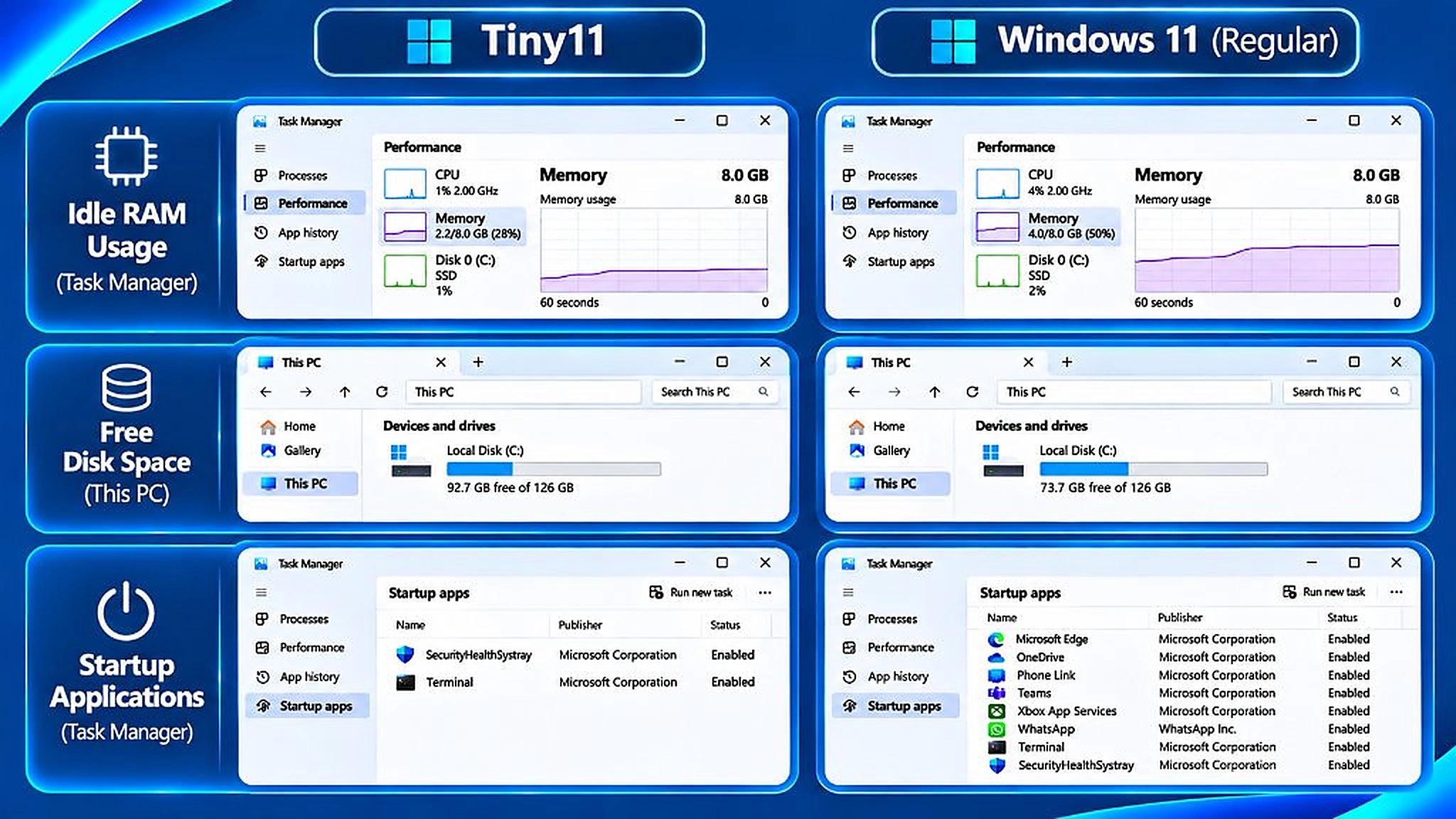
We tested and compared both systems on a mini PC with an Intel Celeron J4125 processor, 8 GB of RAM, and 128 GB of eMMC storage.
RAM and Storage Comparison
Here are the reported results:
| Performance Test | Tiny11 | Regular Windows 11 |
|---|---|---|
| Idle RAM usage | 2.2 GB | 4 GB |
| Free disk space | 92.7 GB | 73.7 GB |
| Startup applications | 2 | 8 |
| Additional free storage | 19 GB | Baseline |
Tiny11 used approximately 1.5 GB less RAM while idle. It also left 19 GB more free disk space on the test computer.
That's a noticeable difference on a machine with only 128 GB of storage. An extra 19 GB gives you more room for applications, documents, and updates.
Still, these results come from one computer. They don't prove that every Tiny11 installation will save the same amount of memory or storage.
Another test used a Hyper-V virtual machine. The customized Windows ISO decreased from 8.8 GB to 5.6 GB, while Task Manager showed 151 running processes. We noted that virtual machine results don't represent real hardware performance.
Honest results and final takeaways? Tiny11 can reduce resource usage, but there's not enough evidence to promise faster boot times, higher CPU performance, or a specific percentage improvement.
Is Tiny11 Better for Gaming?
Tiny11 can leave fewer apps running in the background, which may help a PC that is already short on memory. That does not mean your games will get higher FPS. Gaming performance still depends heavily on your CPU, GPU, game settings, and available RAM. There is no verified, like-for-like gaming benchmark in the material reviewed here that supports a general FPS improvement for Tiny11.
You also need to check which gaming features remain in your build. Removing Xbox-related apps or supporting components can create extra work if you use the Xbox PC app, Game Pass, or other Microsoft services. For a gaming PC that runs standard Windows 11 well, the possible savings rarely justify switching to a modified installation just to chase more frames.
Tiny11 Features: What Is Removed and What Stays?
Tiny11 removes selected apps and components to create a lighter Windows installation. However, the exact changes depend on the builder and version.
Which Windows Apps Are Missing?
Depending on the build, Tiny11 may remove:
- Microsoft Edge and OneDrive.
- Xbox and Game Bar.
- Clipchamp and Microsoft Teams.
- Weather, News, and Maps.
- Photos, Calendar, and Media Player.
- Other preinstalled Microsoft apps.
Some builds retain Edge and OneDrive, while others remove them. You may be able to reinstall certain apps through the Microsoft Store or official sources.
One important distinction: Microsoft Edge and WebView2 are separate components. Some applications still need the WebView2 runtime, even if the Edge browser has been removed.
Which Features Does Tiny11 Keep?
Standard Tiny11 retains essential Windows components, including Windows Update, Windows Defender, and recovery support. File Explorer, Settings, and the Microsoft Store may also remain available.
However, heavily modified builds can remove components that other applications depend on, potentially causing compatibility issues.
Windows 11 Features That Need Specific Hardware
Some Windows 11 features depend on your hardware, not just the operating system.
| Feature | What It Needs |
|---|---|
| Auto HDR | HDR-compatible display |
| DirectStorage | NVMe SSD and compatible DirectX 12 graphics hardware |
| BitLocker to Go | Removable storage and supported Windows edition |
| Client Hyper-V | SLAT-capable processor and supported Windows edition |
| Touch support | Multitouch display |
| Voice Typing | Working microphone |
| Wi-Fi 6E | Compatible adapter, driver, and router |
| Wi-Fi 7 | Supported Windows version, adapter, and router |
| Windows Studio Effects | Compatible NPU and camera |
Don't assume these features will work in every Tiny11 build. Availability depends on the Windows version, hardware, drivers, and components retained during customization.
Tiny11 vs Windows 11: Security and Updates
Performance matters, but security matters more when your computer stores personal files or handles work and payments. This is where the difference between standard Tiny11 and Core becomes especially important.
Does Tiny11 Support Windows Defender?
Standard Tiny11 keeps Windows Defender and Windows Security. You can continue using these built-in protections after installation.
Tiny11 Core is different. It disables Defender and removes additional Windows components. That's another reason to avoid Core as your everyday operating system.
Does Tiny11 Receive Windows Updates?
Standard Tiny11 supports Windows Update and compatible servicing packages. It can receive security and other updates when the build and device are eligible.
Major feature updates deserve extra attention. They may restore removed applications or settings, and sometimes introduce compatibility problems.
Tiny11 Core doesn't support Windows Update or later component servicing. If regular updates matter to you, avoid it.
Does Tiny11 Remove All Telemetry?
Some Tiny11 builds reduce diagnostic data collection and disable selected background services. However, this doesn't mean all tracking disappears.
Privacy settings can also differ between builds. Check the available Windows privacy options after installation instead of assuming everything is switched off.
Are Custom Tiny11 ISO Files Safe?
This is one of the biggest things to consider before downloading Tiny11.
A modified Windows ISO comes from a source that has changed Microsoft's original installation files. If you don't know who made it or what they changed, you have little reason to trust it with your personal data. So, we strongly recommend downloading Tiny11 from its official website, as it is safe and tested.
An unfamiliar image could contain unwanted software or malicious changes. Even a checksum doesn't guarantee safety. It only confirms that the downloaded file matches its published checksum.
For better control, create your own Tiny11 image using a genuine Windows 11 ISO from Microsoft and NTDEV's official Tiny11Builder. If a SHA-256 checksum is available, use it to check the downloaded file.
Remember, Tiny11 doesn't include a Windows license. You still need a valid license to activate Windows.
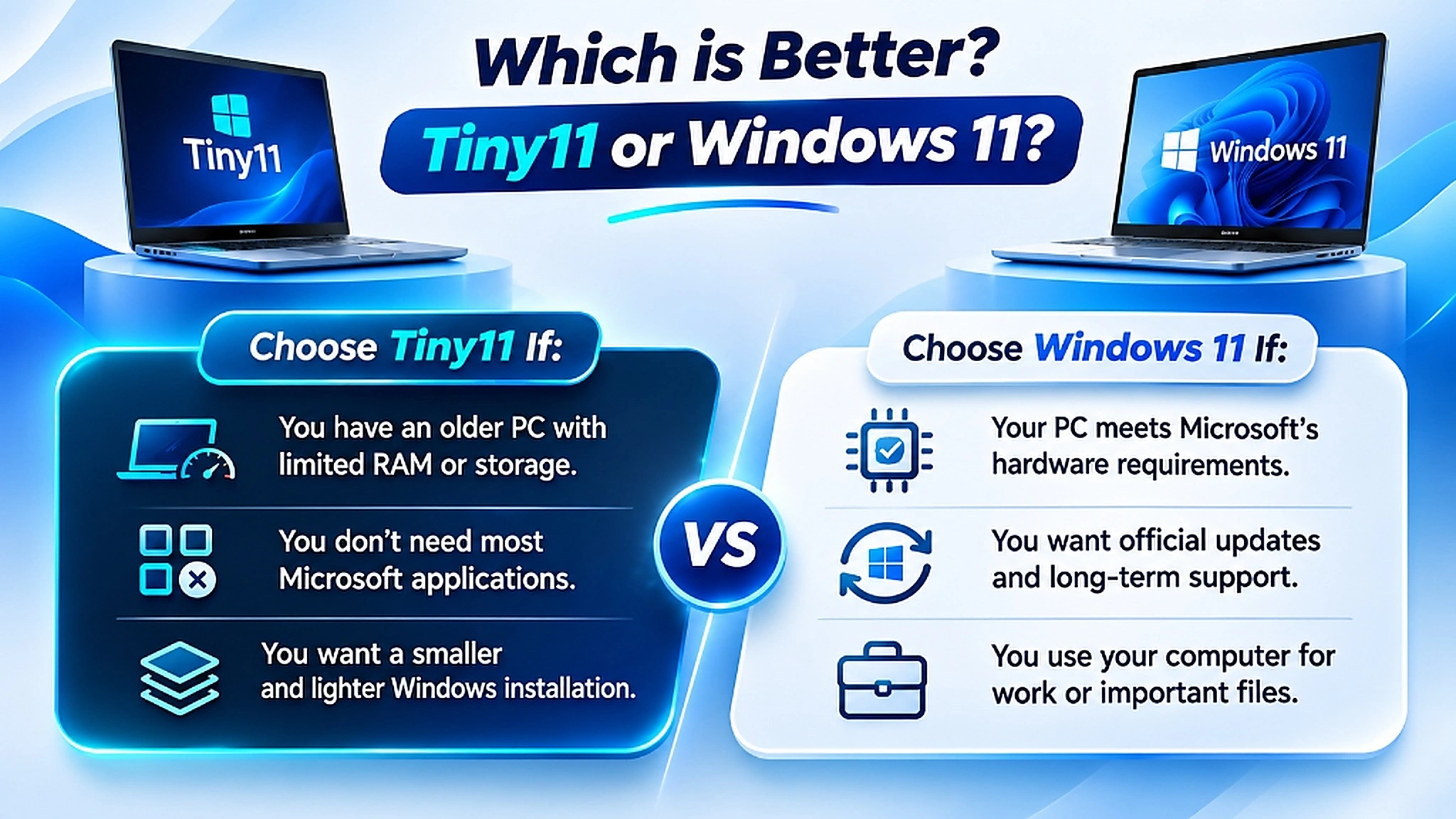
Which Is Better: Tiny11 or Windows 11?
The right choice depends on your computer, the applications you use, and your needs.
Choose Tiny11 If:
- Your older computer has limited RAM or storage.
- Windows 11 blocks installation because of certain hardware checks.
- You don't need most preinstalled Microsoft applications.
- You want a smaller Windows installation.
- You're comfortable checking updates and fixing occasional compatibility problems.
If you choose Tiny11, the standard version is more practical for regular use than Tiny11 Core.
Choose Windows 11 If:
- Your PC meets Microsoft's hardware requirements.
- You want official updates and support.
- You rely on Microsoft applications and services.
- You use your computer for work or important personal files.
- You prefer fewer installation and compatibility surprises.
For most supported computers, regular Windows 11 remains the safer choice.
Final Verdict
Tiny11 has a clear advantage when your computer is short on resources. It removes unwanted apps, reduces installation size, and uses less idle RAM in the test discussed above. On an older laptop with limited storage, those savings can help.
But don't mistake a lighter installation for a guaranteed performance upgrade. The available tests cover limited hardware, and Tiny11 builds don't all contain the same features. You also need to consider security, updates, and where your installation files come from.
Windows 11 remains the better choice for most people. It comes directly from Microsoft, receives official support, and offers a more predictable experience.